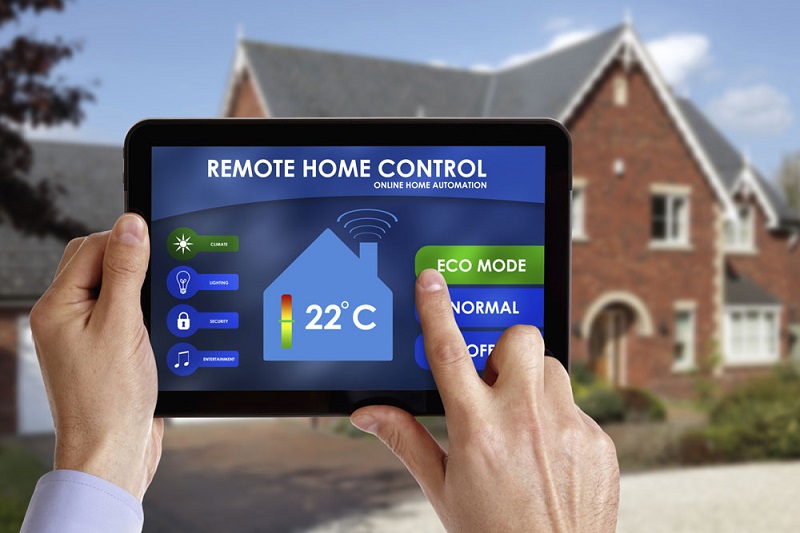
How Do I Activate Home Assistant Cloud
Are you tired of managing your smart home devices separately, juggling multiple apps, and dealing with complex setups? If so, you’re in luck! Home Assistant Cloud is here to simplify your smart home experience and bring all your devices under one virtual roof. In this comprehensive guide, we’ll walk you through the process of activating Home Assistant Cloud, step by step. By the end of this journey, you’ll have your smart home running smoother than ever before.
What is Home Assistant Cloud?
Before we dive into the activation process, let’s take a moment to understand what Home Assistant Cloud is all about. Think of it as your smart home’s personal butler, making your life easier by providing remote access, secure connections, and integration with popular voice assistants like Amazon Alexa and Google Assistant.
Imagine controlling your lights, thermostat, and security cameras with a simple voice command or through a user-friendly app, no matter where you are. Home Assistant Cloud makes this dream a reality, ensuring that your smart home devices work seamlessly together.
Why Activate Home Assistant Cloud?
Okay, you might be wondering, “Why should I bother with Home Assistant Cloud when I’ve already set up my smart home devices?” Great question! Here’s the deal:
- Convenience: Home Assistant Cloud brings all your smart devices together under one virtual roof. No more hopping between different apps or struggling with clunky interfaces.
- Remote Access: Want to adjust your thermostat or check on your security cameras while you’re away from home? Home Assistant Cloud allows remote access to your devices, keeping you in control no matter where you are.
- Voice Control: Love the idea of saying, “Hey Google, turn off the lights” or “Alexa, set the thermostat to 72 degrees”? With Home Assistant Cloud, you can effortlessly integrate your smart devices with voice assistants.
- Enhanced Security: Home Assistant Cloud uses secure connections, adding an extra layer of protection to your smart home. Say goodbye to worries about hacking or unauthorized access.
- Automation: Create custom automation routines to make your life even easier. For example, you can set your lights to automatically turn off when you leave home or receive alerts when your front door opens unexpectedly.
Now that you understand the benefits, let’s get into the nitty-gritty of activating Home Assistant Cloud.
Step 1: Sign Up for Home Assistant Cloud
The journey begins with a simple sign-up process. To activate Home Assistant Cloud, follow these steps:
- Open Home Assistant: If you haven’t already, make sure you have Home Assistant installed and running on your preferred device, be it a Raspberry Pi, NAS, or a dedicated server. Home Assistant Cloud works seamlessly with the Home Assistant platform.
- Access the Configuration Panel: In your Home Assistant interface, click on the “Configuration” option, usually represented by a gear or wrench icon.
- Select “Integrations”: Within the Configuration panel, look for the “Integrations” option and click on it. This is where you’ll manage all your smart home connections.
- Add Integration: At the bottom right of the Integrations page, you’ll find a plus (+) icon or a button that says “Add Integration.” Click on it to start the integration process.
- Search for Home Assistant Cloud: In the search bar, type “Home Assistant Cloud” and select it from the list of available integrations. This will open up the Home Assistant Cloud setup wizard.
Step 2: Set Up Home Assistant Cloud
Now that you’ve selected Home Assistant Cloud, it’s time to set it up:
- Login or Create a Nabu Casa Account: To use Home Assistant Cloud, you need a Nabu Casa account. If you don’t have one, click on the “I don’t have an account” link to create a new one. If you already have an account, log in with your credentials.
- Choose a Subscription Plan: Home Assistant Cloud offers both free and paid subscription plans. The free plan provides basic remote access, while the paid plan includes advanced features like voice control and automation. Select the plan that suits your needs and budget.
- Link Your Home Assistant Installation: To complete the setup, you’ll need to link your Home Assistant installation to your Nabu Casa account. This ensures that Home Assistant Cloud knows which smart devices to control.
- Connect Securely: Home Assistant Cloud will guide you through the process of setting up a secure connection. Follow the on-screen instructions to generate a unique, secure connection URL. This URL will be used to link your Home Assistant instance with the cloud.
- Check Your Configuration: After completing the setup, Home Assistant will perform a configuration check to ensure everything is in order. If any issues are detected, you’ll receive guidance on how to resolve them.
Step 3: Access Your Smart Home Anywhere
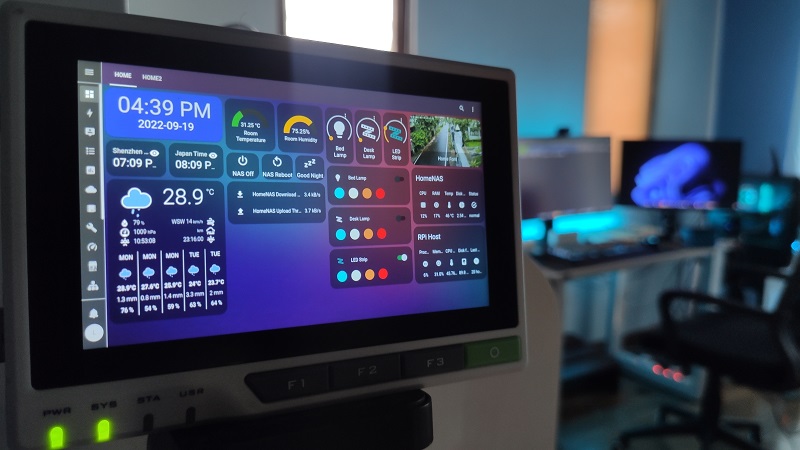
Congratulations! You’ve successfully activated Home Assistant Cloud. Now, let’s explore how you can make the most of it:
- Remote Access: Open the Home Assistant app on your smartphone or access the web interface from any device with an internet connection. You’ll have full control of your smart home, even when you’re miles away.
- Voice Control: If you opted for the paid subscription, you can now integrate your smart devices with voice assistants like Amazon Alexa or Google Assistant. Follow the respective setup guides to link your accounts and start issuing voice commands.
- Automation: Dive into the world of automation by creating custom routines and schedules. For instance, set your lights to turn on automatically at sunset or receive notifications when motion is detected outside your home.
- Enhanced Security: Rest easy knowing that your smart home is secure. Home Assistant Cloud uses encrypted connections to keep your data safe from prying eyes.
- Stay Updated: Home Assistant is continuously improving, so be sure to keep your installation and cloud subscription up to date to enjoy the latest features and security enhancements.
By following these steps, you’ve unleashed the full potential of your smart home. Home Assistant Cloud is like the conductor of an orchestra, ensuring all your smart devices play in harmony.
FAQs (Frequently Asked Questions)
Q1: Is Home Assistant Cloud compatible with my smart devices?
A1: Home Assistant Cloud is compatible with a wide range of smart devices, including lights, thermostats, cameras, locks, and more. It works with popular brands like Philips Hue, Nest, Ring, and Sonos. You can check the official Home Assistant website for a list of compatible devices and integrations.
Q2: Is there a free trial for the paid subscription plan?
A2: Unfortunately, there is no free trial for the paid subscription plan. However, Home Assistant Cloud offers a free plan with basic remote access, allowing you to test its functionality before deciding to upgrade to the paid plan.
Q3: How secure is Home Assistant Cloud?
A3: Home Assistant Cloud takes security seriously. It uses encrypted connections to protect your data and devices from unauthorized access. Additionally, regular updates and security patches are provided to ensure the highest level of security.
Q4: Can I use Home Assistant Cloud with multiple Home Assistant installations?
A4: Currently, Home Assistant Cloud is designed to work with a single Home Assistant installation. If you have multiple installations, you would need a separate subscription for each one.
Q5: What if I encounter issues during the setup process?
A5: If you encounter any issues while setting up Home Assistant Cloud, don’t worry! Home Assistant has an active community and support forums where you can seek assistance. You can also refer to the official documentation for troubleshooting guides and solutions to common problems.










Post Comment